


Microsoft PowerPoint
4.818.90K Reviews
App Specs
- Version
- Varies with Device
- Updated On
- License
- Free
- Downloads
- 1,000,000,000+
- Developer
- Microsoft Corporation
- Categories
- Productivity
- Platform
- Android, iOS
Screenshots

 Analysis by AppCompare
I use Microsoft PowerPoint on a phone less as a tiny replacement for a laptop and more as a way to keep a presentation moving when I’m away from my desk. It’s useful for drafting slides, checking a deck before a meeting, or making a quick correction while someone else is setting up the room. That distinction matters: mobile editing works well for focused jobs, but a crowded slide is still much easier to rebuild on a larger screen.
PowerPoint is a free productivity app from Microsoft Corporation, with optional in-app purchases. Its broad reach is reflected in more than a billion installs and an average rating of 4.8 from around 3.9 million ratings. It is rated for Everyone. Those figures suggest a familiar, widely used tool, but they don’t answer the practical question I care about most: whether it fits the way you actually prepare and share slides.
Trust starts with the account and file
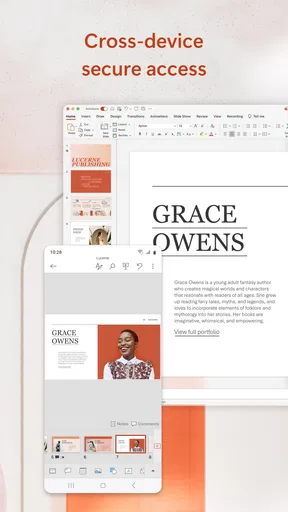
The app is most useful when I already work with PowerPoint files and a Microsoft account. Signing in connects the mobile workflow with OneDrive, so I can return to a presentation on another device rather than treating the phone as a separate island. That convenience also makes the account and the location of a file worth checking before I edit anything sensitive. I try to confirm I’m signed into the right account and working on the intended copy, especially when a deck contains work or school material.
I wouldn’t treat the mere presence of a cloud workflow as proof of any particular privacy or security practice. Instead, I make decisions based on the account and file choices I can see while using the app. If a presentation is confidential, I check where it is saved and who I intend to share it with before sending it around. That small pause is sensible in any presentation tool, and it prevents a rushed mobile edit from turning into a file-management mistake.
Visible choices matter more than assumptions
When I’m deciding whether to use a mobile Office app, I look for the controls I can act on: which account is active, which presentation I opened, and what sharing or collaboration action I’m taking. I avoid assuming that a particular permission is required or that a particular data practice applies unless it is clearly presented to me. For a cautious user, the practical habit is to review the sign-in and sharing choices in context, rather than relying on a general impression of a well-known brand.
This approach is especially useful for shared devices. If you open a presentation on a phone that other people use, make sure you know which account is active before saving or collaborating. If you only need to view a deck, avoid making edits to the original by mistake; if you do need to change it, confirm the file name and destination first. These checks take little effort and help keep personal and professional work from getting mixed together.
Getting Started with PowerPoint
First things first, downloading Microsoft PowerPoint on your mobile device is a breeze. Available on both Android and iOS, it syncs seamlessly with OneDrive, which means you can pick up right where you left off on your desktop. You'll need a Microsoft account, but hey, who doesn’t have one these days?
Worth Reading Before You Choose

Baby Panda World Brings Quick Play to Modern Phones, but Its Game Library Feels Busy

ESPN’s Live Game View Makes Following Close Games Easier

QuizzLand Review: A Good Fit for Short Trivia Breaks, Not Every Player

Basketball Stars: Multiplayer Is Fast, but Can It Recover When Matches Go Wrong?

WEBTOON Turns Phone Updates Into a Better Reading Routine

Link to Windows Runs on Shared Habits, Not Social Feeds
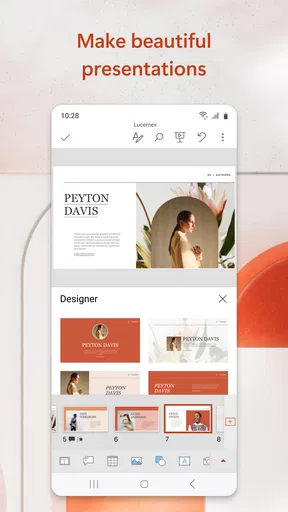
Once you're logged in, the familiar interface welcomes you like an old friend. It’s intuitive and clean, with easy access to templates and design ideas. Trust me, you don’t need to be a pro to whip up something that looks like it was done by one.
Making a deck that stays clear on a phone
A realistic mobile job for me is adjusting a class presentation on the train after a teammate spots a typo or asks me to clarify one point. I’ll fix that line, shorten any text that has become unwieldy, and check the slide at a normal viewing size rather than zooming in until everything looks perfect. A slide that reads comfortably on a phone may still be too dense when projected, so I treat the phone as a place to make targeted improvements, not a guarantee that the deck is ready for a room.
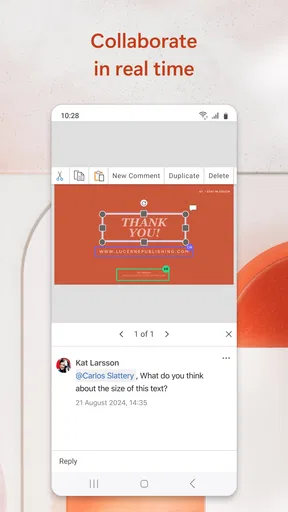
One useful habit is to make a copy before experimenting with a layout or visual treatment, particularly if other people are working on the same deck. That gives me space to try an edit without confusing a teammate about which version to present. For collaborative work, I also keep edits narrow: changing a heading or correcting a number is less likely to disrupt someone else’s layout than moving several elements around at once.
Features That Stand Out
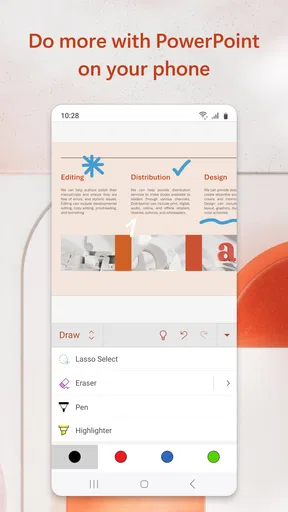
Let’s talk features because this is where PowerPoint shines. You have your standard slides, text boxes, and image insertions, but the magic really happens with the design tools. The app suggests design ideas that are surprisingly on point. It’s like having a mini graphic designer in your pocket.
Animations and transitions are smooth, and you can even add audio or video directly into your slides. This makes your presentations pop, and I’ve got to say, it’s pretty cool doing this on a phone. Plus, the collaboration feature allows multiple people to work on the same presentation in real-time, which is perfect for team projects or group assignments.
Where PowerPoint fits—and where it doesn’t
For someone who regularly receives or edits PowerPoint decks, staying in the same file format is a real advantage. I find it more practical than rebuilding a presentation in a general-purpose document editor, and the slide-based workflow is familiar if your colleagues already exchange PowerPoint files. A different presentation app may suit you better if your group has settled on another format or if you prefer to build everything with a keyboard and a large screen. Switching tools can add friction when collaborators need to pass files back and forth.
I’d recommend the mobile app to students making a last-minute correction, people who present from a device, and coworkers who need to review a deck while travelling. I would not choose a phone as my main workspace for a long, design-heavy presentation. The small display makes precise placement and detailed comparison harder, and typing or rearranging a lot of content is slower than doing it at a desk. If you’re starting from a blank page and need extensive layout work, a tablet or computer is the more comfortable choice.
Templates and design suggestions can speed up a first draft, but I still check whether the result suits the message. A polished-looking slide is not necessarily a clear one. I remove decorative elements that compete with the main point, keep wording brief, and review the deck from the audience’s perspective. On mobile, that final check is particularly important because it’s easy to focus on the selected object and miss how the whole slide reads.
User Experience
Now, let’s chat about the user experience. Navigating through the app is straightforward, although it can feel a bit cramped on smaller screens. But hey, that’s mobile life, right? If your phone’s screen is on the larger side or if you’re using a tablet, you’re golden. The pinch-to-zoom functionality helps a lot when you need to adjust things precisely.
One of the things I love is the ability to present straight from your device. Connect to a screen via wireless or a cable, and boom! You’ve got yourself a portable presentation powerhouse. It’s perfect for meetings on the go or those impromptu pitches that pop up now and then.
Presenting without a scramble
Before presenting from a phone, I open the deck early enough to check the title, slide order, and any media I plan to use. This avoids discovering a misplaced slide while the audience is waiting. I also check the connection to the display before the meeting begins; the phone is convenient, but the room’s screen or connection method can still be the limiting factor. For a talk where I need to jump between sections or make detailed changes while speaking, I’d rather use a laptop or have a colleague manage the slides.
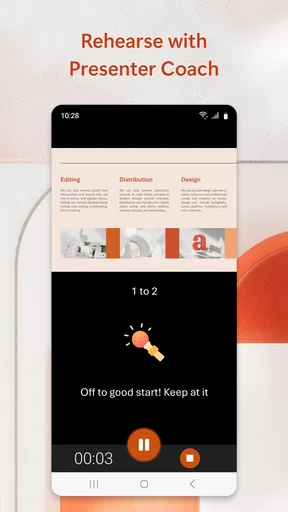
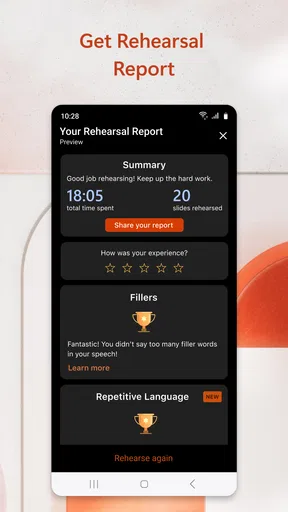
For a short update, a class report, or a quick pitch, presenting from a device can spare me from carrying a computer. For a long talk with lots of embedded media or last-minute switching between files, I prefer to prepare on a larger device and use the phone only if it makes sense for the room. The app gives me flexibility, not a reason to skip rehearsal.
Performance and Compatibility
Performance-wise, the app is pretty solid. It runs smoothly, and I haven’t experienced any significant lag while switching between slides or editing. It integrates well with other Microsoft Office apps, so moving content around is hassle-free. And don’t worry about compatibility issues; PowerPoint can handle various file formats without breaking a sweat.
Cost, setup, and everyday trade-offs
The app itself is free to install, while in-app purchases range from $0.99 to $129.99 per item. I’d check what an optional purchase is for before committing rather than assuming every useful feature requires payment—or that every purchase will matter to my own workflow. If you only need to open a deck, make a simple edit, or present occasionally, start with the free app and see whether it covers your needs. Frequent users should weigh any purchase against the specific work they do, not just the appeal of an upgrade prompt.
New users often wonder whether they can get started without already being presentation experts. In my experience, the familiar slide structure and templates make the first steps approachable, but they don’t replace judgment about what belongs on a slide. I’d begin with a small deck, learn how text and images behave on the phone, and save larger design decisions for a bigger screen. If you already use Microsoft Office, the app’s place in that ecosystem may feel natural; if you don’t, the account step and learning a new file workflow may be more trouble than it’s worth.
Final Thoughts
So, who’s Microsoft PowerPoint for? Honestly, anyone who needs to create presentations on the fly. Whether you’re a student, a business professional, or just someone who loves making slideshows of your last vacation, this app is a solid choice. It’s packed with features, user-friendly, and offers a professional touch to your presentations.
In summary, Microsoft PowerPoint on mobile might just be the sidekick you didn’t know you needed. It’s reliable, efficient, and keeps you looking sharp in front of your audience. Give it a whirl, and let your creativity shine through those slides!
Pros
- Intuitive interface for easy slide creation.
- Extensive template library for all needs.
- Seamless integration with Microsoft 365.
- Robust collaboration features online.
- Compatible with various file formats.
Cons
- Some features require a subscription.
- Large file sizes can slow down devices.
- Limited features in mobile version.
- Occasional performance lags on updates.
- Complex animations can be tricky to use.
FAQs for Microsoft PowerPoint
What features does Microsoft PowerPoint offer for creating presentations?
Microsoft PowerPoint provides a wide range of features, including customizable templates, transition effects, animation tools, and multimedia integration. Users can insert images, videos, and audio to enhance their presentations. Additionally, PowerPoint supports real-time collaboration, allowing multiple users to work on the same file simultaneously, making it ideal for both individual and team projects.
Is Microsoft PowerPoint compatible with other software and file formats?
Yes, Microsoft PowerPoint is highly compatible with other Microsoft Office applications like Word and Excel. Users can easily import data and charts. It also supports various file formats, including PDF, JPEG, and the older PowerPoint file types, ensuring seamless sharing and presentation across different platforms and devices.
Can I use Microsoft PowerPoint on mobile devices?
Absolutely! Microsoft PowerPoint is available on both Android and iOS devices. The mobile app offers essential features for creating and editing presentations on the go. While it may not have all the functionalities of the desktop version, it provides sufficient tools for making quick edits, presenting slides, and collaborating with others remotely.
Do I need an internet connection to use Microsoft PowerPoint?
An internet connection is not required for using Microsoft PowerPoint on a desktop or mobile device after installation. However, you will need internet access for downloading the app, receiving updates, and using online features like cloud storage and collaboration through OneDrive or SharePoint.
Are there any costs associated with using Microsoft PowerPoint?
Microsoft PowerPoint is part of the Microsoft 365 suite, which requires a subscription. There is a free version with limited features available online. For full access to all features, especially on desktop, users will need to subscribe to Microsoft 365. Educational institutions often provide access to students and teachers at no additional cost.


